
What you will do: install the extension, open a supported site, check the popup, try a mode and a font size, and switch a site off and on.
Before you start: Chrome 111 or newer (or Edge with the same package). You need an account on at least one supported site if the site asks for one. You do not need to change any setting.
1. Install and pin#
Add RTLY from the Chrome Web Store (other ways to install are in Installation). Then click the puzzle icon in the toolbar and pin RTLY, so its icon is always visible.
2. Open a supported site#
Go to a site such as claude.ai, chatgpt.com or gemini.google.com. RTLY is switched on for every supported site by default. If the tab was already open when you installed RTLY, reload it once.
3. Check the popup#
Click the RTLY icon in the toolbar.
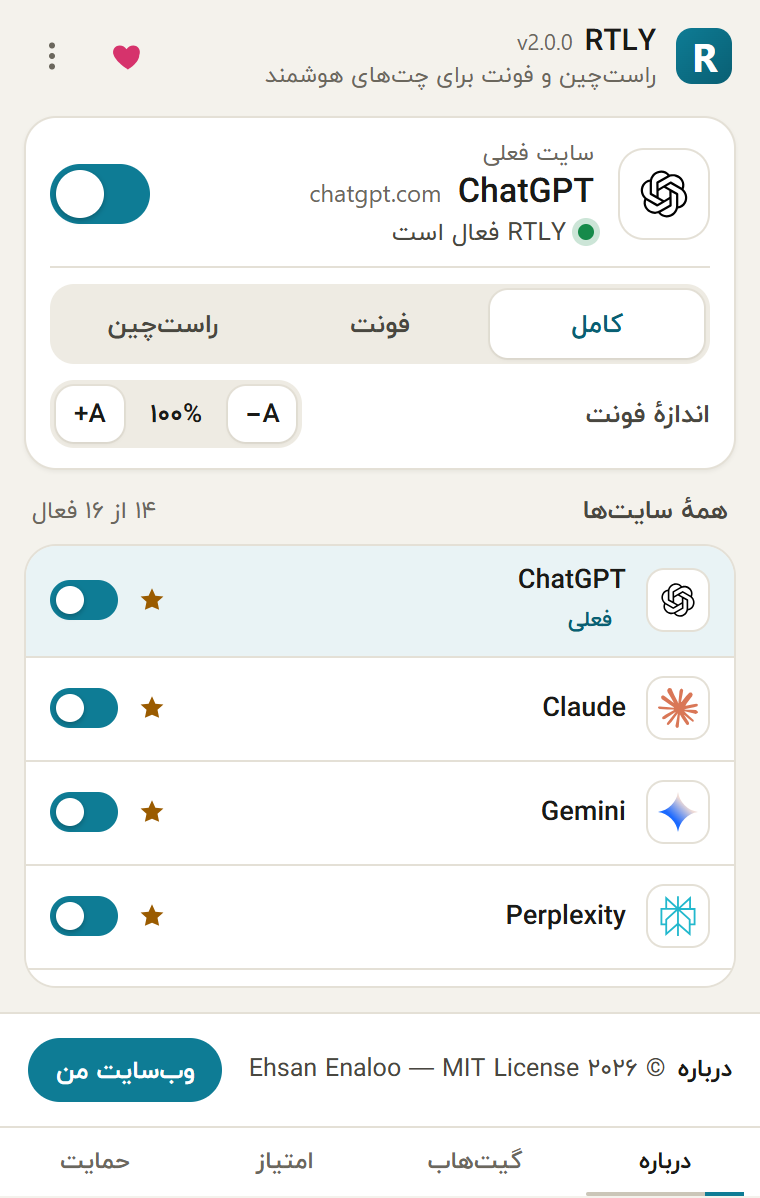
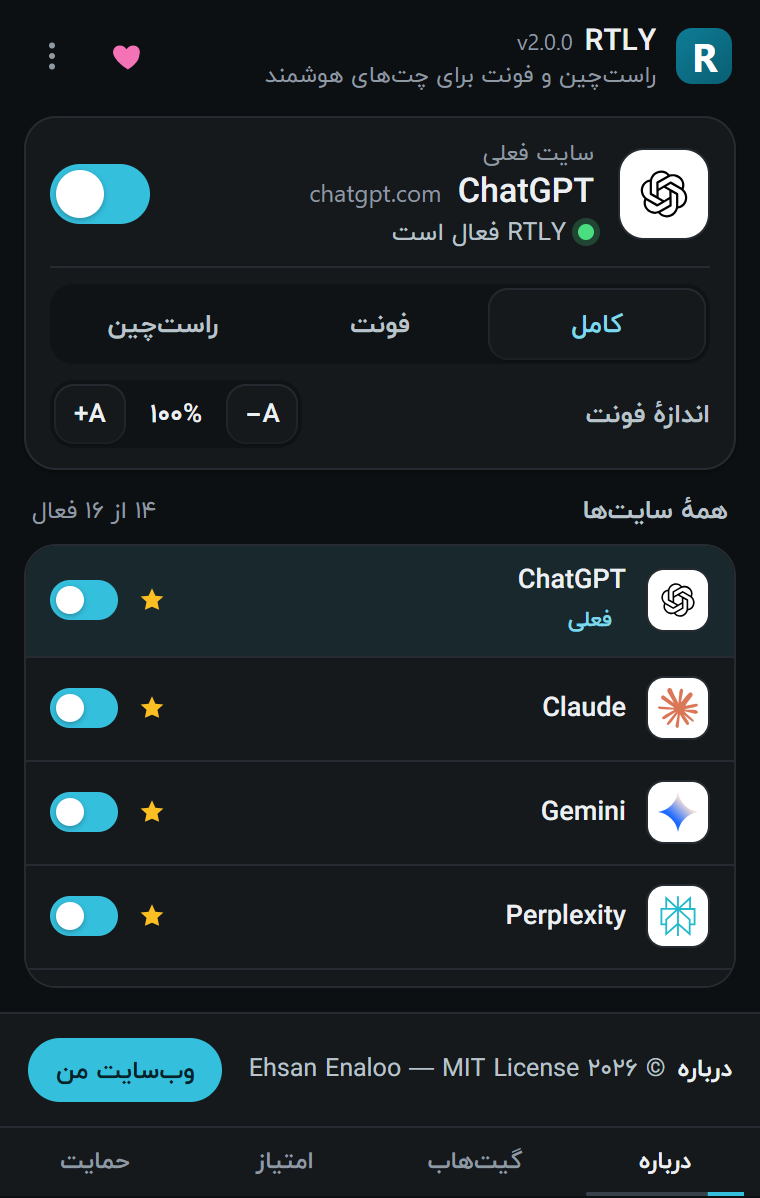
You should see: the site name and address under "Current site", the words "RTLY active", a switch that is on, three mode buttons (Full, Font, RTL), a font-size control showing 100%, and a list of all 16 supported sites below.
On any other page, the popup says that RTLY does not support the site. That is expected.
4. Read and write Persian#
Send a message in Persian, or open a conversation that has Persian answers. Each paragraph is checked on its own.
You should see: Persian paragraphs aligned to the right, in the IranYekan font. English paragraphs stay on the left, in the site's own font. Code blocks stay left-to-right. When you type in the message box, each line follows the language you start it in.
How RTLY decides is explained in Modes and direction.
5. Choose a mode and a font size#
- In the popup, click Font. The direction no longer changes, but the Persian font stays. Click RTL for the opposite: direction only, no font. Click Full to get both again.
- Click A+ or A− to change the text size in steps of 5%, between 85% and 120%.
Both changes apply to the open tabs straight away. You do not need to reload.
6. Switch a site off#
Turn off the switch in the popup. RTLY reloads the open tabs of that site and then leaves it alone. Turn the switch on to bring RTLY back.
What to try next#
- Open the settings page for the live preview, the interface language and the sites table.
- Use the shortcut Alt+Shift+R to turn RTLY on or off for the site you are on.
- If a site looks wrong, read Troubleshooting and then report it.